
All guides
Getting Started
Welcome to your PressHERO portal. This guide walks you through your dashboard, the onboarding checklist, and your account balance so you can hit the ground running.
Your Dashboard
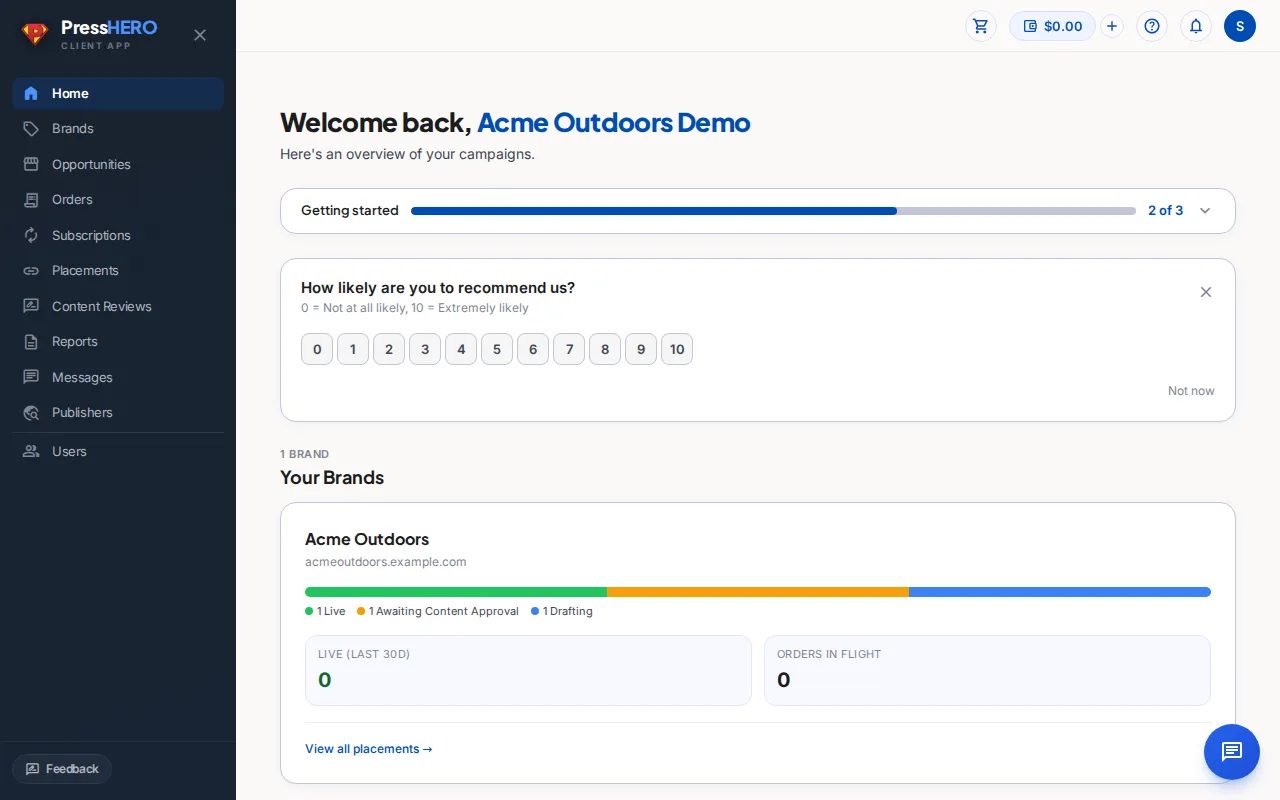
Your dashboard is the home base for your campaigns. It shows you:
- Waiting on you — an amber strip at the top lists any placements or content pieces that need your input right now. Tap a link to jump straight to the relevant page.
- Brand cards — one card per brand shows a live count of placements by status, how many went live in the last 30 days, and your latest campaign report.
- Onboarding checklist — a step-by-step card walks you through your first actions. It disappears once you've completed or dismissed all steps.
The Onboarding Checklist
The first time you log in you'll see an onboarding checklist at the top of your dashboard. The steps are dynamic — they adapt to your account state and may include:
- Fund your balance or place an order — add credit so you're ready to check out, or go straight to placing your first order.
- Review content waiting on you — if any articles are ready for your approval, this step appears so you can review them right away.
- Complete your order details — shown conditionally when an order has outstanding information your team needs before they can proceed.
Steps you've already completed are ticked off automatically and don't count against the progress bar. When you're done — or if you'd prefer not to see the checklist — click the Don't show again button to dismiss it permanently.
Your Account Balance
The balance chip in the top-right corner of every page shows your current available credit. This balance is drawn down when you check out and is topped up either by your account manager or via a self-serve top-up.
To view your full transaction history or top up, click the balance chip in the header — it opens your Balance page.
Managing Brand References
Open a brand to keep reusable source material with it. Add a web page or YouTube URL, or upload one or more PDF documents. Each source has a usage description that tells the team when and how it should be used.
A source may show as Queued or Processing while PressHERO prepares it. Failed sources keep their reason visible so an account admin can retry them. Account members can inspect and download references, while only account admins can add, edit, refresh, retry, or archive them. Additional information remains a separate place for authoritative brand instructions.
Related guides