
All guides
Messages & Requests
Use the chat button in the bottom-right corner of any portal page to talk directly with your account team and raise deliverable requests without sending an email.
Starting a Conversation
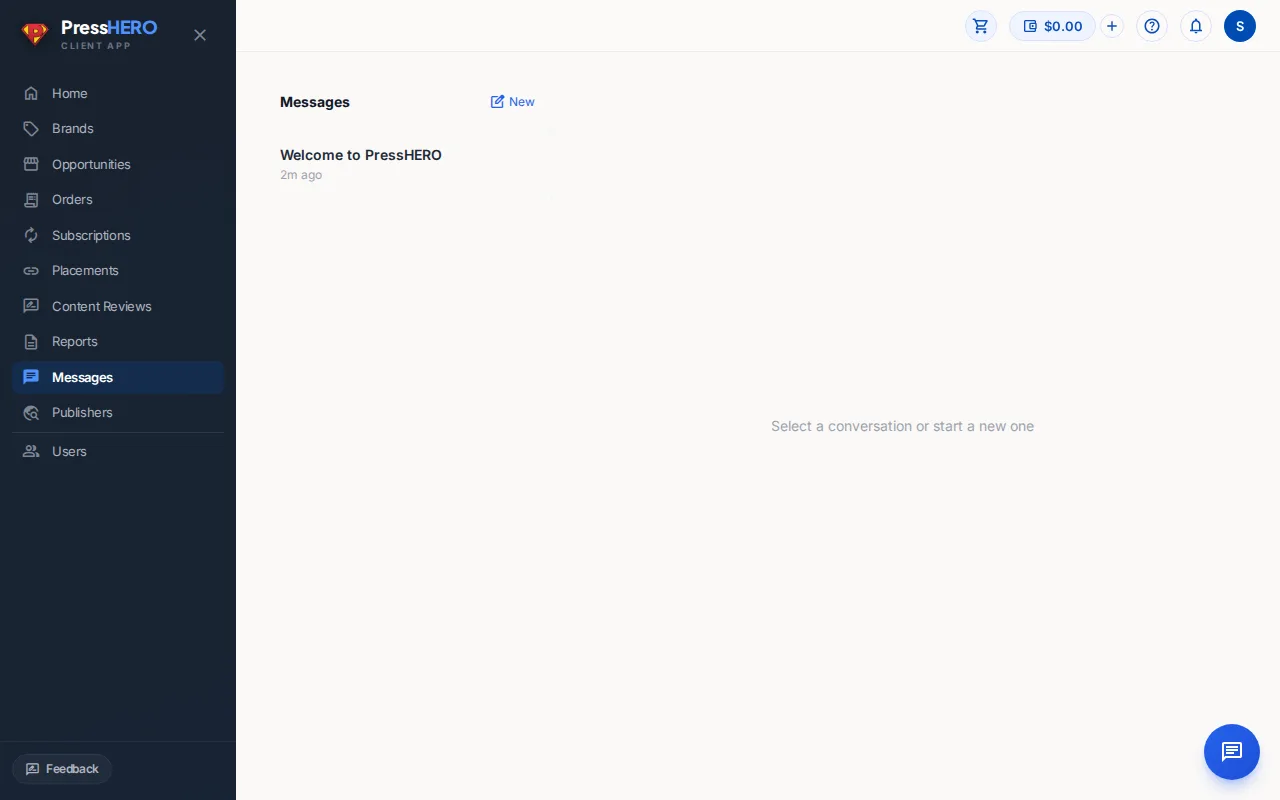
Click the chat button in the bottom-right corner of any portal page to open the messaging panel. It opens on your conversation list, showing every conversation you have with your account team.
To start a new conversation, click the New button (pencil icon) in the top-right corner of the conversation list. A form appears asking for:
- Subject — a short description of what you want to discuss.
- Message — your opening message.
Click Send Message and the panel opens your new conversation. We typically reply within a few hours.
Replying in a Thread
Click any conversation in the list to open it. Messages from the PressHERO team appear on the left; your own messages appear on the right in blue.
Type your reply in the text box at the bottom of the thread and press Enter (or click the send arrow) to post it. Hold Shift+Enter to add a new line without sending.
The thread polls for new messages every few seconds while it's open, so replies from your team appear automatically — no need to refresh.
Deliverable Requests
Throughout the portal you'll find request buttons that let you ask your team for a specific deliverable without composing a message from scratch. These buttons appear in context — for example on the Opportunities page, the Reports page, and on individual placement and brand detail views.
Available request types include:
- Request inventory — ask for more publisher opportunities for a specific brand.
- Request strategy — get a link-building strategy recommendation.
- Request audit — ask for a site audit.
- Request proposal — request a campaign proposal.
- Request visibility report — ask for an organic visibility report.
Clicking any request button opens a short form. The subject is pre-filled for you — edit it if you like — and an optional Additional context field lets you add details. Click Send Request and you'll see a confirmation toast. The request opens a conversation in the chat panel so you can track your team's response.
Notification Bell & Email Preferences
The bell icon in the top-right header shows a badge count when you have unread notifications. Click it to see recent activity — things like a new message from your team, a placement going live, or a report being published.
You can control which events trigger a bell notification and which also send you an email. Click your avatar in the top-right corner, choose My Profile, and open the Notification Preferences tab. Each event type has two toggles:
- Bell — in-portal notification (on by default).
- Email — an email to your account address (on by default). Turn this off to receive bell-only updates for that event type.
Events you can configure include: new messages from PressHERO, content ready for review, placement updates, campaign report ready, and order status changes.
Related guides