
All guides
Reports
Your campaign reports summarise progress, placements, and performance. This guide explains what's inside each report and how to download the PDF.
What's in a Report?
Campaign reports are prepared by your account manager and cover the performance of your link-building activity over a defined period. A typical report includes:
- Executive summary — headline metrics and key takeaways.
- Placements delivered — a breakdown of Live links with publisher details, DR, and live dates.
- Organic performance — traffic and visibility trends for your brand.
- Next steps — your account manager's recommendations for the next campaign period.
Reports are branded as PDF documents. The content is tailored to the brand(s) covered — multi-brand accounts may receive separate reports per brand or a combined report.
When Do Reports Appear?
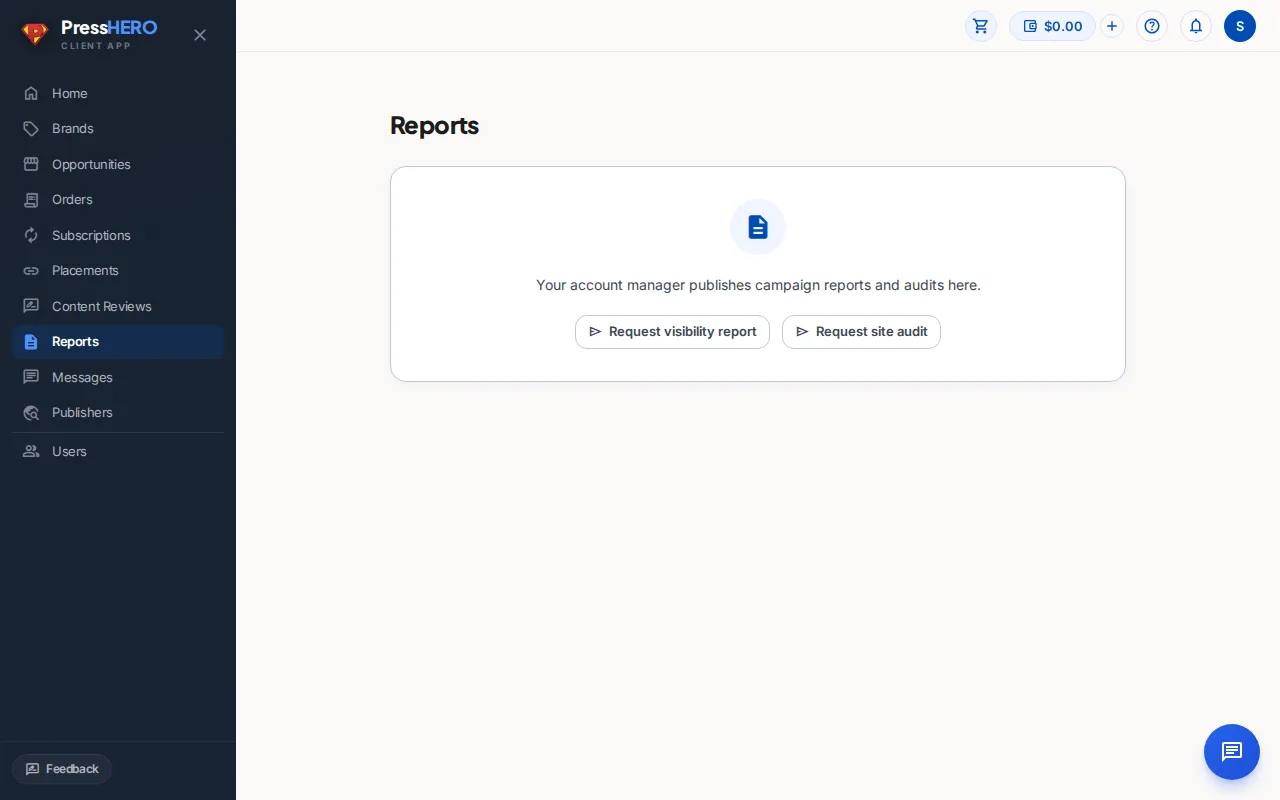
Reports are published by your account manager — they don't generate automatically. You'll receive a bell notification and an email as soon as a new report is ready.
If the Reports page shows an empty state, it means no reports have been published yet for your account. Your account manager will publish your first report after your initial campaign activity has had time to produce meaningful results.
If you'd like a report sooner, use the Request visibility report or Request audit buttons on the empty-state screen to let your team know.
Downloading a Report
Each report card on the Reports page has a Download PDF button on the right. Click it to generate and download the report as a PDF file.
While the PDF is being generated, the button shows Generating… and is temporarily disabled. The file downloads automatically to your browser's default download folder, named after the report, your brand and the month — for example Report-Acme-09-2026.pdf.
If the download fails, an error message appears under the button. Try again in a moment — if the problem persists, contact us via Messages.
Visibility Tracker Portfolio
Brands with an existing visibility tracker have a tracker panel on the Reports page. These panels form your tracked-brand portfolio; brands without a tracker are not given a synthetic dashboard.
- Published placements counts placement records whose pages have been published, including records still going through PressHERO's checks. Several placement records can share one published content record, so this can be higher than the Published content records count shown in Placed Content.
- Data as of shows when the most recent completed tracker run finished. “No completed runs” means the tracker has not produced an observation window yet.
- Rankings and AI collection determine which dashboard views are available for that brand.
- Exact citation appearances and Unique cited articles summarise positive exact URL matches from the displayed latest-30-run window. They are citation counts, not impact scores. A second line says how many of those appearances came with a brand mention — an AI answer can cite your article as a source without naming your brand.
Tracker panels are ordered to put brands with more published placements and fresher completed data first. Select View dashboard to open that brand's tracker.
Placed Content Citation Evidence
Inside a brand's visibility tracker, select Placed Content. The searchable table can filter and sort article identity, evidence state, counts, engines, dates, and related placements. Use Columns to tailor the view, then select any row to open its evidence drawer. Each published content record is classified across the displayed completed-run window:
- Exact article citation means an AI answer cited the same published article URL. It is shown as “mentioned” when that same answer also named the brand, and as “not mentioned” when it did not — the engine read the article but did not recommend the brand. The With brand mention column counts the mentioned subset.
- Publisher-domain evidence means an AI answer cited another page on the same publisher domain, not the published article itself.
- Not observed means neither form was found within the bounded window of completed runs shown on screen. It does not mean the article has never been cited.
- Details unavailable means the published article identity could not be compared. It is not a finding that the article was absent from AI answers.
The window names the number of completed runs and its start and end dates. Results outside that stored window, untracked prompts, and other AI answers are not included.
This is citation-presence evidence, not proof of impact. A citation appearing after publication does not prove that the placement caused a change in AI visibility.
Related placement links open the campaign placement record or records connected to that published article. When several placements share one article, they can appear together; the links identify those records and do not turn domain-only evidence into an exact article citation.
For an exact row, the drawer lists each stored observation's prompt, engine, run, date, safely formatted answer, and matching citations. Select View this AI answer to open the same historical prompt in AI Visibility. Domain-only rows remain aggregate evidence and correctly show no exact observations.
Reading AI Evidence Drill-downs
In AI Visibility, the prompt table's Evidence column separates Exact article from Other citations. Use the info control beside the section title to read the badge definitions.
- Exact article means a cited URL matches a published PressHERO article URL. The badge says “mentioned” when the same answer also named the brand and “not mentioned” when it did not; the not-mentioned state is real evidence that the engine read the article, not a recommendation. Other citations are sources in the same answer that do not match a published article URL.
- Engine accordions start collapsed so you can scan mention, citation, sentiment, and rank badges first. A link from Placed Content or Opportunities opens the requested historical prompt and expands the matching engine and run.
- Stored answers render safe Markdown, including headings, emphasis, lists, and safe links. Raw HTML and unsafe links are sanitized rather than trusted.
- Exact citation rows use brand-blue text, a verified icon, and an explicit Exact article citation label. Other citations stay neutral, so meaning never depends on color alone. Each engine header also carries an Exact article chip, so you can see which engine holds the citation without expanding it.
The drawer shows stored evidence from the bounded tracker history. It does not claim that the published article caused the answer or any visibility change.
Related guides